Add numbers to a screenshot on Mac
Turning a screenshot into a step-by-step guide? macshot's number tool drops 1, 2, 3 markers as you click - auto-incrementing, cleanly styled, and easy to rearrange.
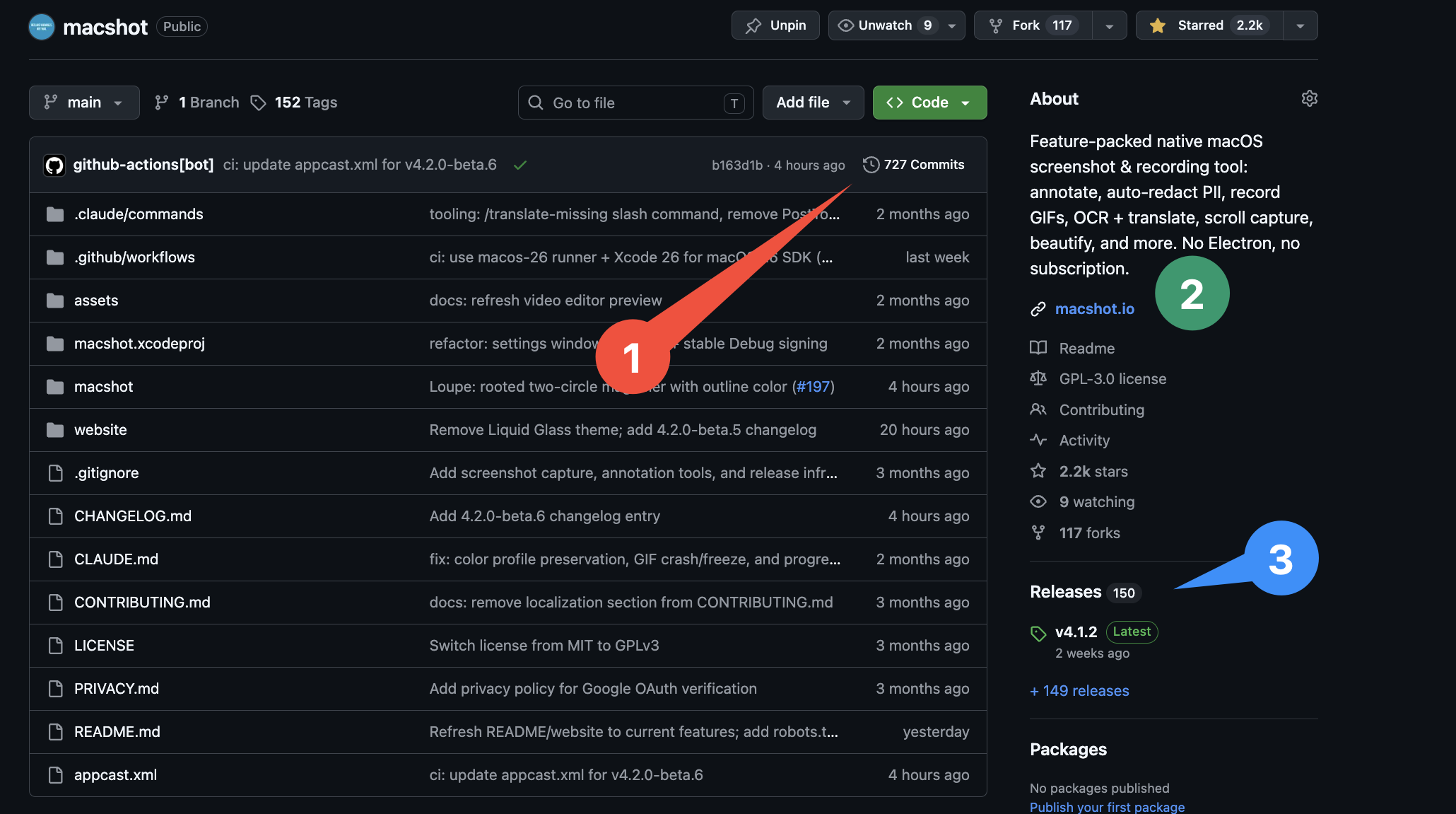
Turning a screenshot into a step-by-step guide? macshot's number tool drops 1, 2, 3 markers as you click - auto-incrementing, cleanly styled, and easy to rearrange.
macOS Markup gives you shapes and text, but no real way to add ordered step markers - you'd have to draw a circle and type a number into each one, then keep them consistent by hand. macshot has a dedicated number tool that does it for you.
Pick the number tool and click on the part of the image each step refers to. The first click is 1, the next is 2, and so on - no typing, no manual sequencing. Delete or undo a marker and the rest renumber so the order stays right.
Numbered markers are the fastest way to turn a screenshot into instructions - onboarding docs, bug reports, tutorials, and how-tos. Combine them with arrows, text, and highlights, then copy or save the finished image.
macshot is a native Swift and AppKit app, free and open source under the GPLv3 license, with no subscription, account, or watermark.
macOS Markup has no numbering tool. macshot adds one - pick the number tool and click where each step goes, and it drops 1, 2, 3 automatically with a clean circular marker each time.
Yes. Each click places the next number in sequence. If you delete or undo a marker, the count adjusts so the sequence stays correct.
Yes. Markers are editable annotations - drag them to reposition, change the size and color, and they can point to the thing they label.
Yes. macshot is free and open source under the GPLv3 license, with no subscription or account.